# Crypto.com Pay Integration
This page illustrates some integration options for the Crypto.com Pay [module](https://pay-docs.crypto.com/?shell#overview-home). The Crypto.com Pay module can be integrated directly into your game development environment.
### Pre-requisites
* Crypto.com Pay Developer [access](https://merchant.crypto.com/users/sign_in/)
* **Optional:** Web-hook server (e.g. nodejs, [ngrok](https://ngrok.com/))
## Getting Started
The Crypto.com Pay module makes use of REST API calls to trigger certain actions. These action will create events that are retrievable via web-hooks. The following shell command illustrates how to initiate the Crypto.com Pay payment.
```shell
POST https://pay.crypto.com/api/payments
```
```shell
curl https://pay.crypto.com/api/payments \
-u PUBLISHABLE_KEY: \
-d amount=2500 \
-d currency=USD \
-d description="Crypto.com Tee (Unisex)"
```
{% hint style="info" %}
This API can be called using either your Secret Key or Publishable Key. These keys are generated in the merchant centre [dashboard](https://merchant.crypto.com/users/sign_in/).
{% endhint %}
### Unity Web-view Module
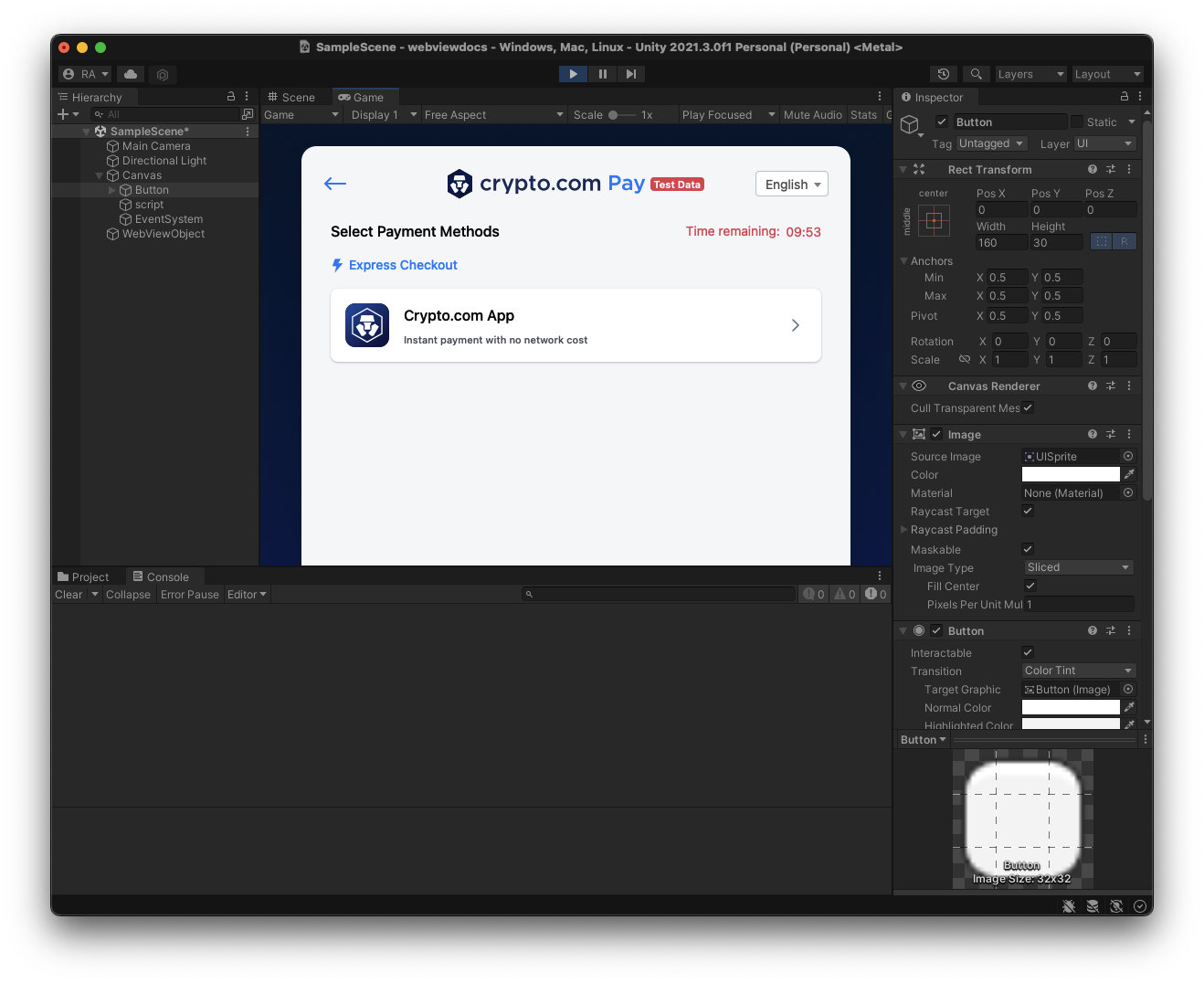
To use the Crypto.com Pay module in Unity we can simple use the [UnityWebRequest](https://docs.unity3d.com/ScriptReference/Networking.UnityWebRequest.Post.html) module to simulate a post request. We recommend to use a web-hook server to retrieve the payment event responses. This section illustrates how a new web-view game object is created to display the Crypto.com Pay page within the game. To install the web-view module, please follow the examples below.
**Step 1.** Create a new 3d Game in Unity.
**Step 2.** Add the following dependency to the manifest file in `Packages/manifest.json`
```json
"net.gree.unity-webview": "https://github.com/gree/unity-webview.git?path=/dist/package",
```
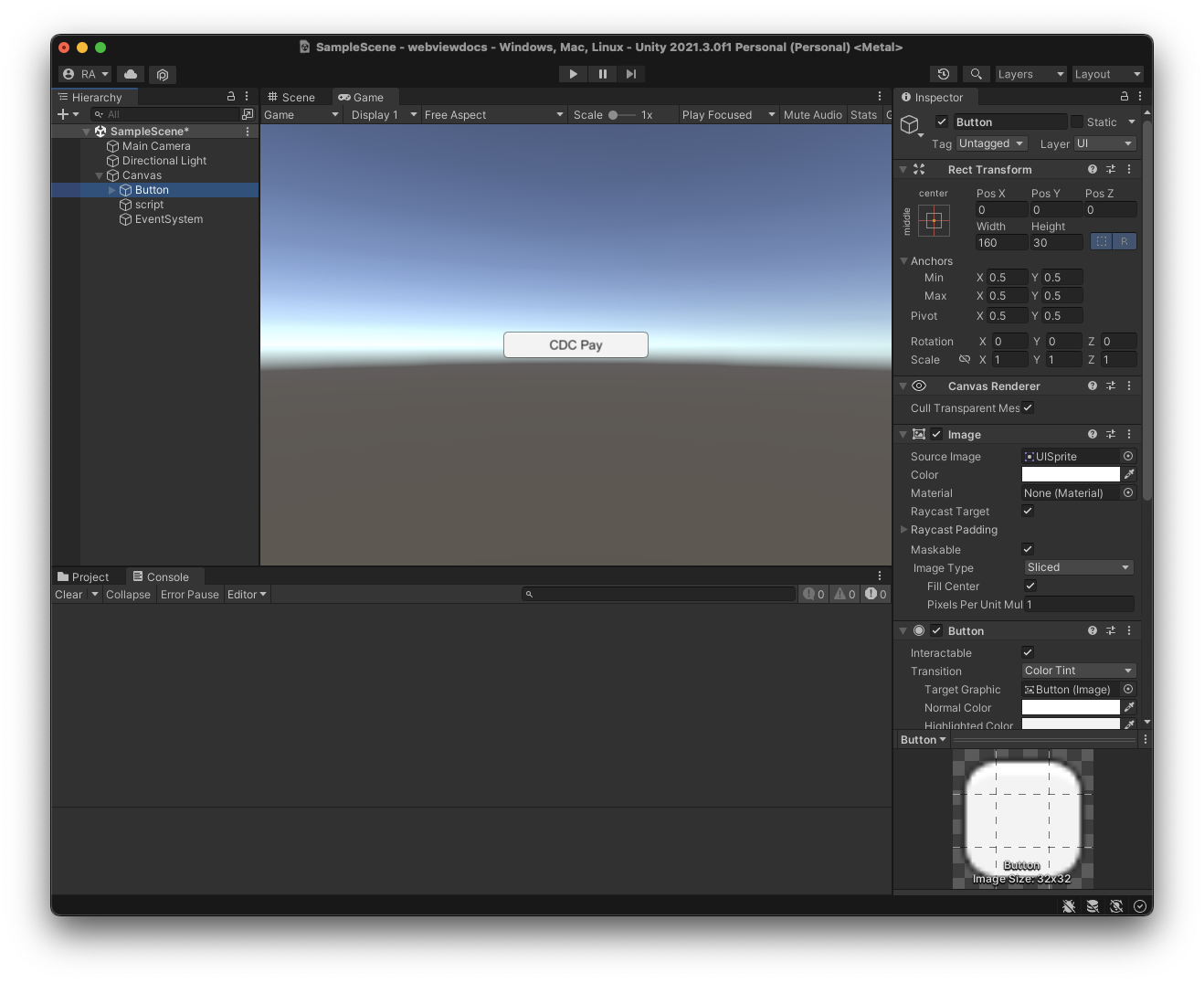
**Step 3.** Create a button game object.
**Step 4.** Create a script called `CdcPay.cs` and add the following code to yourc
```csharp
using System.Collections;
using System.Collections.Generic;
using UnityEngine;
using UnityEngine.SceneManagement;
using UnityEngine.UI;
using UnityEngine.Networking;
public class CdcPay : MonoBehaviour
{
public Text status;
WebViewObject webViewObject;
public class Response {
public string payment_url;
}
public void OnCDCPay()
{
StartCoroutine(Checkout());
}
IEnumerator Checkout()
{
WWWForm form = new WWWForm();
form.AddField("amount", "1000");
form.AddField("currency", "USD");
form.AddField("description", "Product Name");
form.AddField("return_url", "http://YOUR_WEBSITE.com/orders/123/complete");
form.AddField("cancel_url", "http://YOUR_WEBSITE.com/orders/123/fail");
using (UnityWebRequest www = UnityWebRequest.Post("https://pay.crypto.com/api/payments", form))
{
www.SetRequestHeader("Authorization", "Bearer YOUR_PUBLISHABLE_KEY");
yield return www.SendWebRequest();
Response data = JsonUtility.FromJson(System.Text.Encoding.UTF8.GetString(www.downloadHandler.data));
if (www.result != UnityWebRequest.Result.Success)
{
Debug.Log(www.error);
Debug.Log(www.downloadHandler.data);
}
else
{
webViewObject = (new GameObject("WebViewObject")).AddComponent();
webViewObject.Init((msg) => {
Debug.Log(msg);
});
webViewObject.LoadURL(data.payment_url);
webViewObject.SetVisibility(true);
}
}
}
}
```
**Step 5.** Create an empty game object called script, and add the `CdcPay.cs` script to it.
**Step 6.** Drag the script game object into the button onClick component and select the `CdcPay()` method
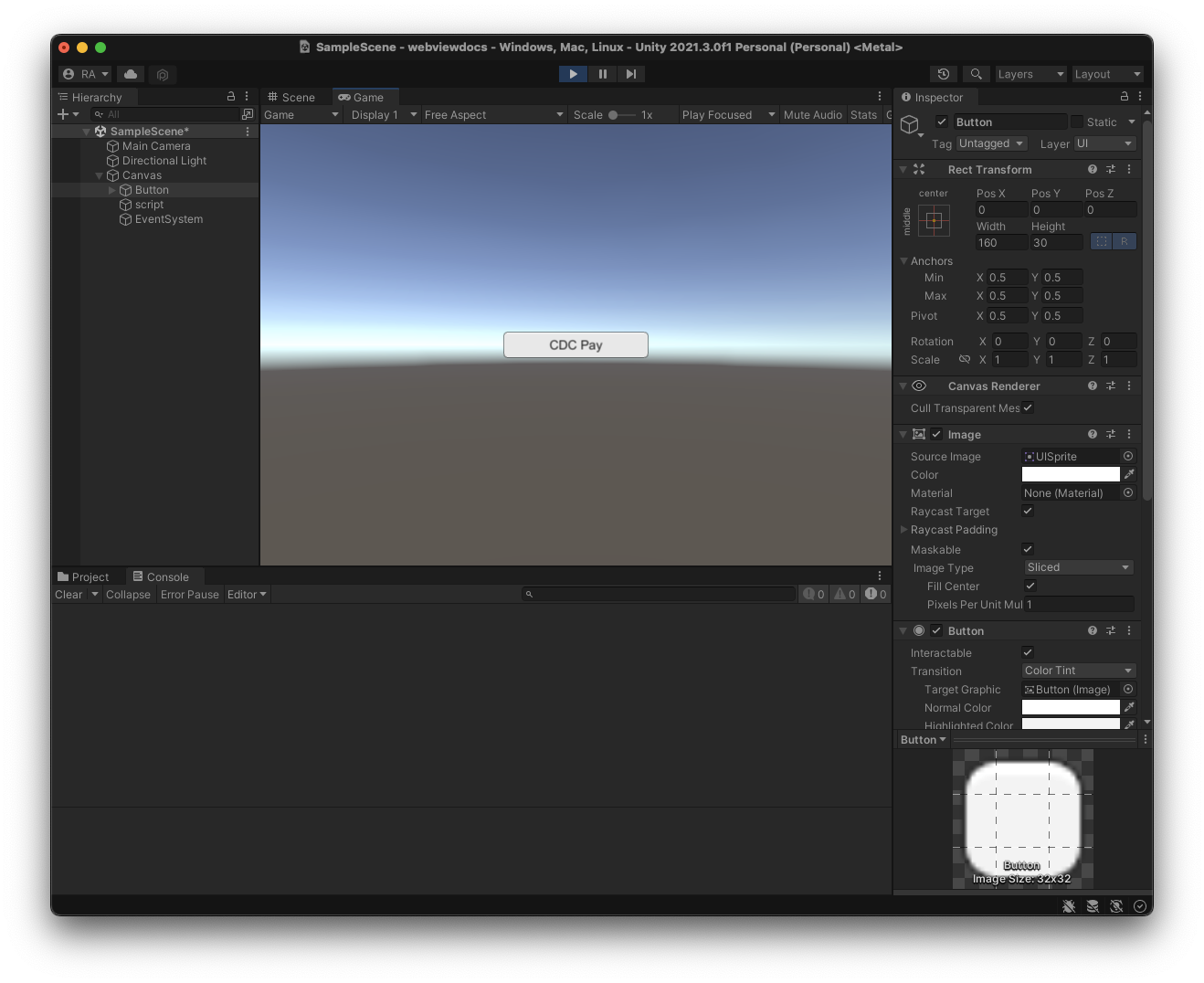
**Step 7.** Run from the editor and click the checkout button.
Click Button
Complete Test Payment
**Step 8.** Complete a test order and retrieve the payload via web-hook as explained in the next section.
## Web-Hooks
Web-hooks make it easier to integrate with Crypto.com Pay by allowing you to subscribe to a set of events. You can refer to [Resources](https://pay-docs.crypto.com/?shell#api-reference-resources) for the schema of the objects.
### Overview
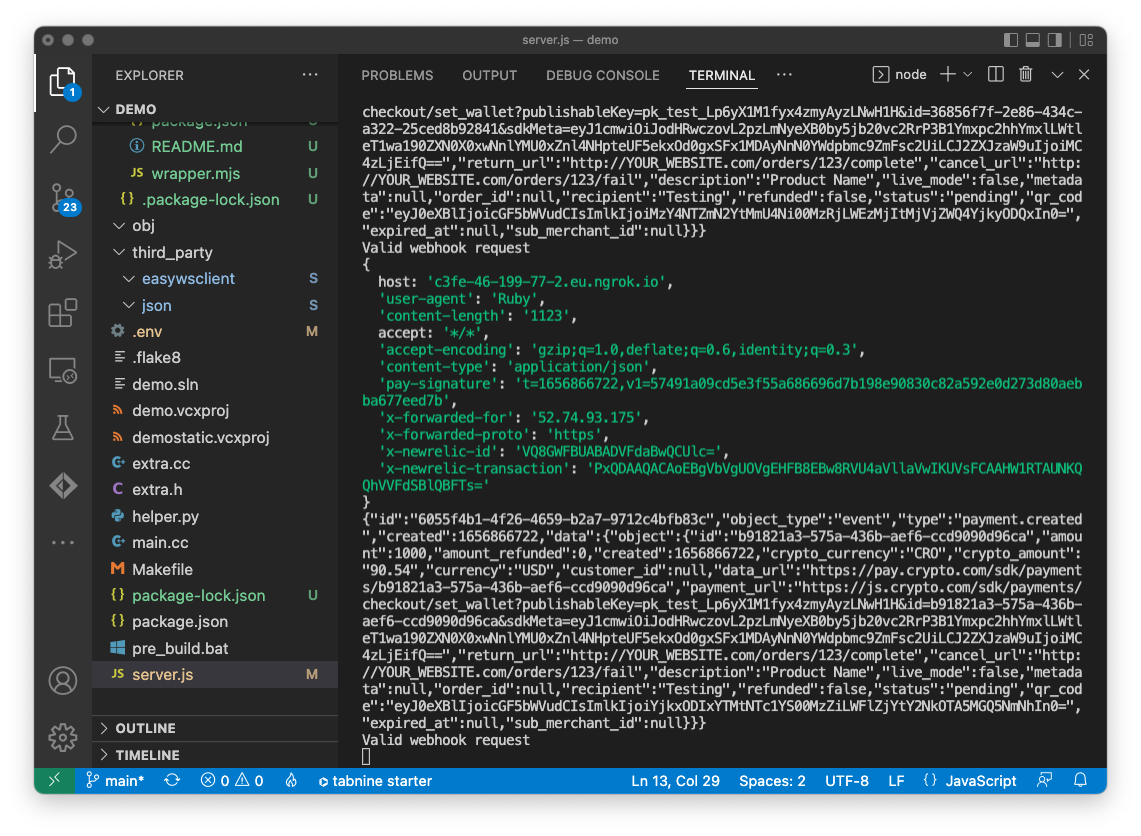
To simulate a purchase and retrieve the payload from the Crypto.com Pay events, you can use this web-hook server [example](https://github.com/cronos-labs/play-cpp-sdk/tree/main/demo).
### Requirements
* [node.js](https://nodejs.org/en/)
* [ngrok](https://ngrok.com/)
### Installation
**Step 1.** Clone the following repository
```
git clone https://github.com/cronos-labs/play-cpp-sdk.git
```
**Step 2.** Run the following commands:
```
cd demo
npm install
node server.js
```
{% hint style="info" %}
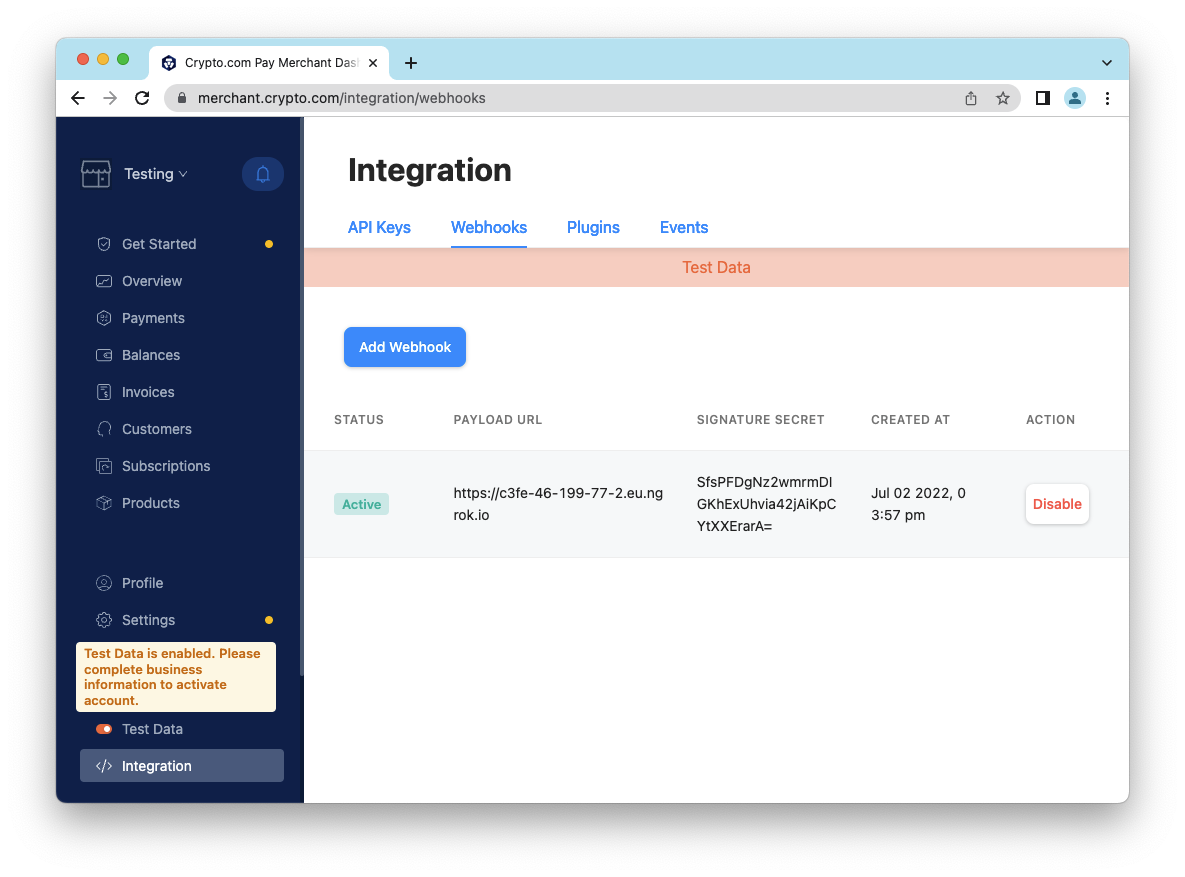
Please ensure to replace the `SIGNATURE_SECRET` from you merchants dashboard after adding the web-hook endpoint
{% endhint %}
**Step 3.** Open a new terminal and run the following command:
```
ngrok http 4567
```
**Step 4.** Add the forwarding url from the ngrok GUI as your payload endpoint in your merchant dashboard.
**Step 5.** Run the Crypto.com Pay API from a client (e.g. the web-view module in Unity).
## Crypto.com Pay documentation
You can read more about the Crypto.com Pay integration [here](https://pay-docs.crypto.com/?shell#overview-home).