# Installation and Enabling
## Downloading the Plugin from Marketplace
1. Visit our [plugin page](https://www.fab.com/listings/72132d30-7650-4f3c-8e51-d1a9745ac7e4), sign in with your Epic game account and click the "**Free"** button to add it into **Epic Games Launcher;**
2. In **Library** Tab of **Epic Games Launcher**, click **Install to Engine** below **Cronos Play for Unreal Engine** inside the **VAULT** section;
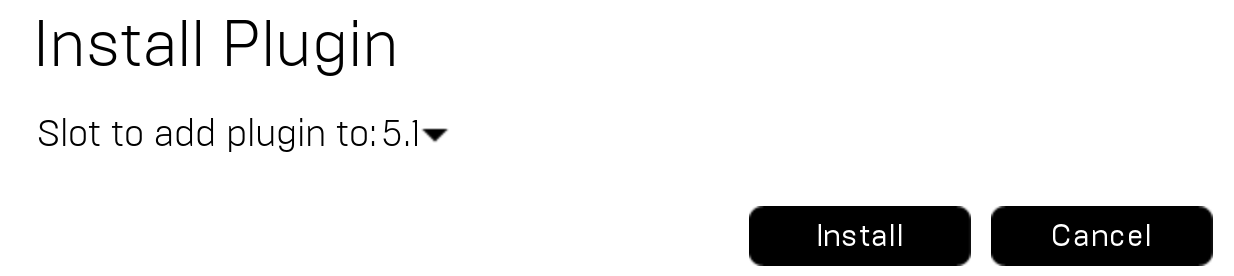
3. Select the Engine version then click **Install** as below:
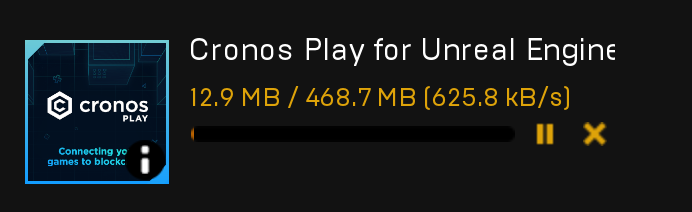
Afterwards, the plugin will begin to download
## Enabling the Plugin
* In Epic Games Launcher, click **Launch**, for example, **Unreal Engine 5.1**
* Select or Create New Project
* After **Unreal Editor** is opened, click **Edit** > **Plugins**, and search for **Cronos Play for Unreal Engine**
* Check **Enabled** box and press **Restart Now** button to restart the project, so that the plugin changes can take effect